Tuesday, June 18, 2013 @ 5:00am
By: Ken Colburn, Data Doctors
If you're like most consumers, your wallet has become a bulging behemoth! Credit cards, debit cards, membership cards, loyalty cards, insurance cards and the worse part is, you rarely use most of them.
If you're ready to lighten the load, take a look at the Lemon Wallet app because it securely stores digital copies of all your cards right on your smartphone.
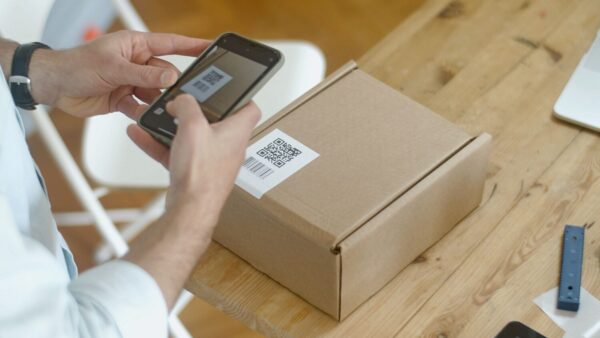
Getting started is a snap, because it uses your camera to scan the cards, asks you to verify all the info and then adds it to your secured account.
Lemon Wallet's scanning capabilities extends to your paper receipts as well, so you can keep them digitized and organized, great for you road warriors with expense accounts!
Most people are frightened of having identification and credit card info stored on their smartphones, but if you think about it, it's a lot more secure than your wallet!
If you want to extend the services to include balance and transaction info of your bank cards and a time saving lost wallet service, its only 5 bucks per month!
The app itself is free and works on iPhone, Android and Windows phones, so what are you waiting for?
If you've got a tech question, we've got your answer!
All you have to do is ask us at facebook.com/datadoctors.
Monday, June 17, 2013 @ 5:00am
By: Ken Colburn, Data Doctors
Smartphone users have to have a data plan, but other than turning things off, is there a better way to conserve your data?
Of course there is, and of course YOUR Data Doctors know about it. It's called Onavo Extend.
Onavo Extend is an app for iPhone users that you need to have. Every tech publication praises Onavo Extend because it does exactly what the name says - it "extends" your data plan.
The app compresses your data. You know how you'll shove trash down in your trash can to make more space - although, let's face it, you're really shoving it down to avoid having to take it out - well Onavo Extend does that with your data AND increases your plan by up to 500%!
It'll also keep track of how much data you use, and where you could afford to save even more data, uhh, not going back to the trash compacting analogy for this one.
Onavo Extend will also dramatically cut down on your roaming charges, so you'll be saving up to 80% on your data usage and you'll be saving money. Win-Win.
Wait, we didn't tell people the best part, the Onavo Extend App is free!
We've got the answers to your technology questions.
All you have to do is ask us at facebook.com/datadoctors.
Saturday, June 15, 2013 @ 5:00am
By: Ken Colburn, Data Doctors
I'm going to various countries in Europe this summer and can't figure out the best way to use my smartphone. Any suggestions? - Kim
Your smartphone can be your most valuable companion when traveling abroad and if you do it wrong, it could be the single highest travel expense you will encounter.
The Internet is filled with stories of folks that didn't realize that they were racking up huge bills because they were on international roaming rates.
First lesson: Just because your smartphone works when you land in a foreign country, doesn't mean you should just use it as usual.
There are a number of ways to avoid expense charges, but the best method for you depends on a few variables: Your phone, your carrier and what you actually want to do with your phone.
If your phone is unlocked or you can get your hands on an unlocked smartphone, you can simply purchase a pre-paid "SIM" card in the country or countries that you plan on visiting and totally control what you spend.
If your phone is tied to a US-based carrier, it's probably locked and will only work on that carrier's system or a system in Europe that they have a roaming agreement with. In these cases, the cheapest way to use your smartphone is to simply put it into airplane mode and try to use open Wi-Fi hotspots wherever you are traveling. This is also the most frustrating way to use your phone, because you pretty much need to stay put in order to get on the Internet.
If you want to be able to connect virtually anywhere you are or while you are on the move, you really need to work with the cellular providers.
When I travel, all I care about is data access because I use Skype and Skype Out minutes to make phone calls, so I generally activate a global data plan from my carrier before I leave for my trip.
AT&T charges $30 for 120MB of data, $60 for 300MB and $120 for 800MB and the overage rates are pretty steep, so choose wisely. Verizon charges $25 for every 100MB of data, so the equivalent 800MB plan will cost you $200. Make sure you contact your carrier before you leave to discuss options and to make sure it automatically terminates when you return so you don't get charged every month.
Even 800MB will go quickly if you aren't really careful, so you need to change your surfing behavior while you are on your trip. I always put my phone on airplane mode when I get on the plane and reset my usage meter so I can track my exact data usage once I hit foreign soil. I only take my phone out of airplane mode when I can't find an open Wi-Fi connection and I need location specific information (maps, restaurants, etc.) or to use a translation app in real-time.
I don't post to social media, check my e-mail or casually surf the Internet unless I am connected to a Wi-Fi hotspot.
I always make sure that all the background apps are shut down before I take it out of airplane mode so I don't accidentally waste a bunch of bandwidth.
I also look every day to see how much bandwidth I have left and divide it by the number of remaining travel days to know how much data I can use per day.
Another way to stretch the data plan is use an app called Onavo Extend which uses compression technology to squeeze more usage out of your data plan. It also helps you understand which tasks are using the most bandwidth and is available for iPhone, iPad and some Android devices.
Friday, June 14, 2013 @ 5:00am
By: Ken Colburn, Data Doctors
If you're one of those hyper-connected online users, you're gonna love this Data Doctors Tech Tip.
So your kid is away to college, but you like to Skype regularly. Your Boss wants everyone using Google Talk. Your friends are all on Facebook, and sometimes you want to connect with new people but not sure how or where, IMO Network. Done.
The IMO Network gives you access to any Instant Messenger Network in one easy to use, and highly convenient place. Name your method of connection - AIM? MSN? Yahoo! Messenger? Steam? They're all on there.
If all the Instant Messenger Networks were different foreign languages to learn, IMO Network would be your Rosetta Stone.
You can get group chats going through different networks. You can do Video AND Voice chat. Share files and documents with people, and even get desktop notifications.
"Desktop Notifications? I do all of my Skyping and Facebooking on my phone!" No problem! The IMO app is not only available on iPhones, iPads, and Androids but it's free too. So no matter where the people you know decide to chat, you'll be connected to them in one place. Maybe you can nickname yourself "the nucleus". No? It was worth a shot.
We've got the answers to your technology questions.
All you have to do is ask us at facebook.com/datadoctors.
Thursday, June 13, 2013 @ 11:18am
By: Ken Colburn, Data Doctors
If you spend a few minutes understanding who Edward Snowden really is, you will quickly come to the realization that he wasn't a security expert, he wasn't a security analyst, he wasn't a counterspy, he wasn't even an investigator...
He was an IT administrator!
He was responsible for managing the IT infrastructure that all of the classified and secret documents traversed and because he had administrative-level control, he could essentially see anything that was stored anywhere on the system.
We are starting to get more details about why he came to the conclusions that he did, but one thing is for certain: he looked at this information without context, from the authors or operatives which could easily cause someone to jump to conclusions (we've all been victims of an e-mail or text message that was misinterpreted).
Whether you agree with his decision or not, understanding how someone in that position was allowed to create this disruption is the key thing to understand.
So how does this translate to the average business?
Simple. If your IT administrator has access to documents, e-mails or other sensitive items (like the payroll reports) and they are taken out of context, they could become the Edward Snowden of your business.
Creating a clear process for protecting sensitive information will provide management with peace of mind and removes the IT administrator from suspicion.
So what solutions can you provide your audiences?
Start using document-level passwords on sensitive documents, spreadsheets, presentations, PDF files, etc.
• Create an encrypted storage volume for executive-level data storage
• Use an outside source to audit and verify the security to eliminate the IT administrator(s) from suspicion
Get real-time updates and threat warnings via our Facebook Fan Page: www.facebook.com/DataDoctors
Thursday, June 13, 2013 @ 5:00am
By: Ken Colburn, Data Doctors
With everything going on in your life it's tough to remember it all, the events, the meetings, even leisure time, schedule it, ALL of it, with the Google Calendar.
Keep everything in one place AND share it with your family, friends, and even co-workers, though, depending on what's in your schedule you might want to be careful with that last one.
You also don't have to wait to schedule or view your Calendar. The Google calendar has two-way syncing to your phone's already built-in calendar so you can view, update, schedule and share while you're on the go - putting YOU in charge of YOUR time.
Speaking of being on the go, ever get caught up in the middle of a project or task and forget that you had lunch with a friend? Use Google Calendar's reminders to keep you on track and on time. Get a reminder email or text from Google, and never miss an appointment.
There's no way it gets better, right? It does. Sync with the Calendar of your choice - Microsoft Outlook, your Apple iCal, whatever you want... you don't even need internet access to view your Google Calendar while you're on the go!
So go out and buy Google Calendar today, oh wait, you can't, it's completely FREE!
We've got the answers to your technology questions.
All you have to do is ask us at facebook.com/datadoctors.
Wednesday, June 12, 2013 @ 5:00am
By: Ken Colburn, Data Doctors
If you occasionally need some of the tools in Photoshop but can't afford the price of admission into the Adobe club, have we got a solution for you.
Pixlr is a full-featured photo editor right in your web browser, no download, no wait and no money!
It's so close to Photoshop in its functionality, you'll feel right at home.
You can jump in and start using this tool, no registration required in just a few seconds.
So, what are some of the tools that come with a free photo editor? Red-eye reduction, spot healing, drawing tools, clone tools, sharpen and blur tools, did we mention it's free?
It even has filters that mimic HDR, glamour glow, tilt-shift, blurs, vignettes, and noise.
Of course you can control the all-important levels, curves, hue, saturation, brightness and contrast.
If someone tosses you a PSD file, no sweat. It can open them too.
We've got the answers to your technology questions.
All you have to do is ask us at facebook.com/datadoctors.
Tuesday, June 11, 2013 @ 5:00am
By: Ken Colburn, Data Doctors
Looking for a smartphone that won't break the bank? Here are 3 that'll save you some dough.
At Number 1 we have the HTC "One"
Yes, that was done on purpose. The HTC 1 has clean crisp display, a very high-quality camera, and an extremely fast processor for only a hundred bucks. By the way, the external speakers alone is worth the price.
Next is the Samsung Galaxy S3
So you're listening to this because you want to save money - which means you don't care about getting the latest and greatest or showing off blah blah blah. That's why the Samsung Galaxy S3 is perfect for you! Ignore the S4 hype. The S3 has an incredibly fast processor, AND an 8-megapixel camera... without breaking the bank, you really don't need much more than that.
And at Number 3, the Apple iPhone 4S
Like the Samsung Galaxy S3, ignore the hype of "new" and save some cash. Is the iPhone 5 a great phone? Yes, is the iPhone 4S a great phone? YES! In fact, many users still prefer the iPhone 4S over the 5, which works out well for you because the 4S is only $99 these days.
Unlike football, your smartphone isn't a "game of inches". Yes the iPhone 5 has a 4-inch screen, but for far less money you can get a 4S with a 3.5-inch screen. Not to mention some of the same great perks of a brand new iPhone 5 and the support of iOS 6. We suggest you take the discount.
We've got the answers to your technology questions.
All you have to do is ask us at facebook.com/datadoctors.
Monday, June 10, 2013 @ 11:06am
By: Ken Colburn, Data Doctors
What causes a laptop's screen to suddenly have a tiny black spot in the middle of it and is there anything I can do about it?
- Thomas
The black spot you refer to is most likely what we refer to as a ‘dead' or ‘stuck' pixel and depending upon where on the display it is, it can be a major irritation.
Just like when your car's windshield gets a stone chip right in your primary line of sight, it's a constant annoyance.
The actual technology used in your display would determine whether a black pixel is dead or stuck, so I'll generalize in my explanation.
There are various types of display technologies these days, but the most commonly used in laptops are LCDs (Liquid Crystal Display) which uses liquid to control how much light is allowed to pass to the color display layer.
When you get a constant black dot, a defect in the electronics that usually cause that pixel to change colors is stuck in the off position, which does not allow any light to pass through.
It's kind of like a single light bulb that has gone out in a massive Las Vegas casino marquee.
Your laptop's screen has a single light source that is modified by the liquid so your eye sees different colors, so unfortunately, it's not as simple as replacing a single light bulb in a massive marquee.
In the early days of the LCD boom, we saw a much larger percentage of our customers that suffered this type of irritation, but much less so with the current displays.
If it's only a single pixel, it's virtually impossible to be from something you did and more likely to be the failure of a single tiny transistor in your display.
If you had accidentally poked the screen with something sharp, you would notice a much larger area of dead pixels and likely physical damage to the surface of the screen.
There are various websites that claim to have procedures to attempt to fix both scenarios, but I can't recommend any of them specifically because each situation is unique. Some suggest that pressing on the pixel with a blunt object can sometimes return it to working order, but if done wrong, it can create even more damage.
A stuck pixel that's a color other than black or white has the highest possibility of being renewed by using a program that flashes every pixel repeatedly, but I wouldn't count on any miracles.
Most manufacturers have a specific policy regarding what is considered a factory defect and I'm not aware of any of them that views a single dead pixel as a defect.
If you start to see a cluster of pixels going dead, that would be an indication of a malfunctioning display and should be replaced by the manufacturer if it's still under warranty.
If it's past the warranty coverage, I'd suggest that you do a search on the Internet on your exact make and model to make sure there wasn't a recall of some sort that might provide out of warranty coverage.
If none of the online DIY fixes works and you have no warranty coverage, you only have two options: live with it or spend the money to replace the display panel.
Get real-time updates & threat warnings via our Facebook Fan Page: www.facebook.com/DataDoctors
Monday, June 10, 2013 @ 5:00am
By: Ken Colburn, Data Doctors
If you use Gmail you know how great it is, but how can you see your email when you're offline?
Sometimes we don't have a connection to the internet, but still need to answer those emails or check the messages you still have to read.
That's where Gmail Offline comes in.
Gmail Offline is a Gmail app that allows you to access your gmail, even when you're not connected to the internet.
You can even respond to emails and search your archives but how is that possible?
After you launch the Chrome plugin for the first time, Gmail Offline will automatically synchronize messages anytime Chrome is running and an Internet connection is available.
More than just an offline app, the user interface is much like the tablet version of the app. It's extremely fast and focuses on the one thing you need, your email.
To start Offline Gmail after you install it, open a new tab in Chrome, click on the icon, and Offline Gmail is up and running.
We've got the answers to your technology questions.
All you have to do is ask us at facebook.com/datadoctors.
Next »